
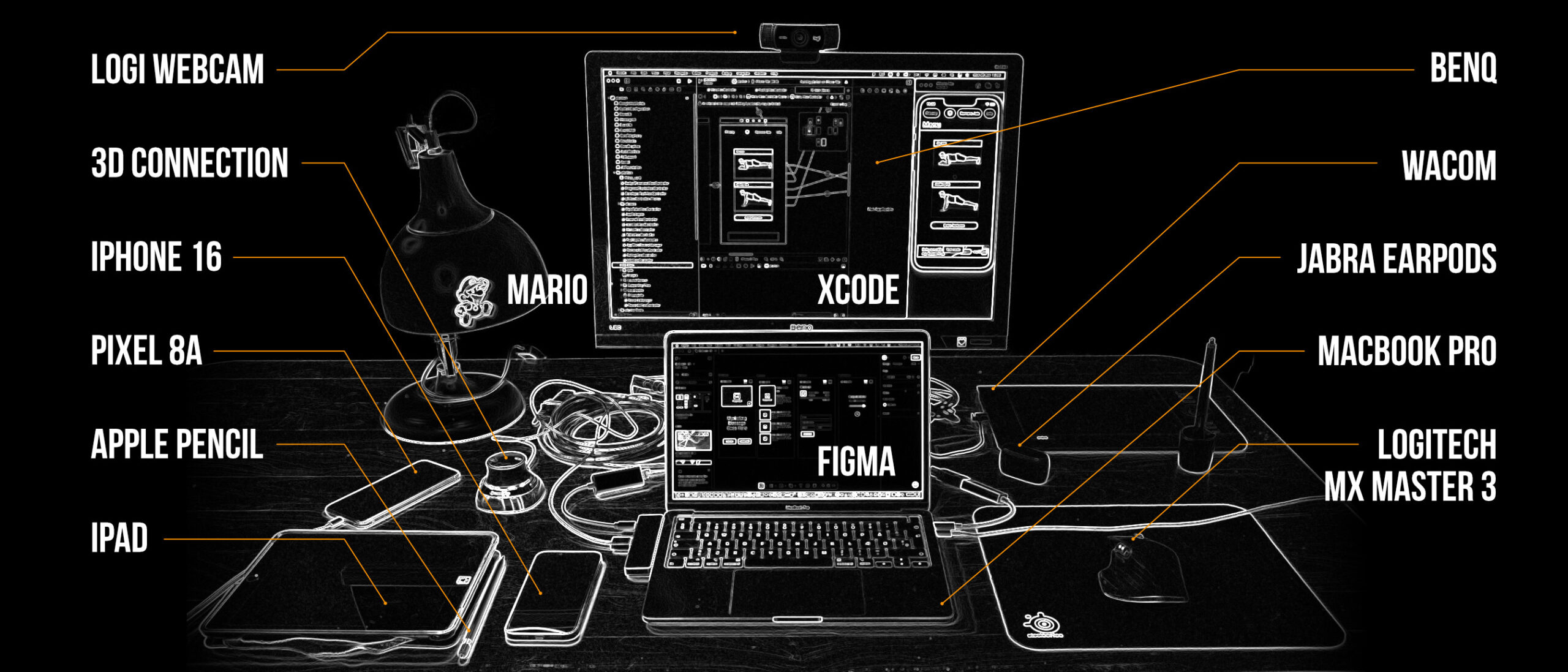
My App Development Setup 2025
The exact hardware and software I use to build 70+ apps with 500,000+ downloads
After 12 years of app development, working as an Interactive Play Designer at LEGO (including the LEGO Super Mario project), and building over 70 apps, I've refined my setup to what actually works.
This isn't about having the most expensive gear – it's about having the right tools that let you focus on creating great apps instead of fighting with your equipment.
The Philosophy Behind My Setup
When I started app development in 2012, I borrowed a MacBook from my university. Today, I invest in quality tools that last, but I'm strategic about where I spend money. Some tools pay for themselves immediately (like a good monitor), while others you can start without and add later.
My rule: If a tool saves me 30 minutes a day, it's worth the investment. That's 180 hours a year – basically a month of productive time.
Affiliate Disclosure: The product links below are affiliate links. As an Amazon Associate and Partner-Ads affiliate, I earn from qualifying purchases at no extra cost to you. I only recommend products I personally use in my daily development work.
The Core Development Machine
MacBook Pro (M-series)
Why it's essential: If you're developing iOS apps, you need a Mac. There's no way around it – Xcode only runs on macOS. I've tried everything over the years, and a MacBook Pro is simply the best tool for the job.
What I use it for:
- Xcode for iOS development
- Android Studio for Android apps
- Unity for game development
- Running iOS Simulator and Android Emulator simultaneously
- Design work in Affinity Photo and Designer
My recommendation: Get the 14" or 16" MacBook Pro with at least 16GB RAM (32GB if you can afford it). The M-series chips (M1, M2, M3) are incredible for development – fast compiles, can run multiple emulators, and great battery life.
- Apple M1/M2/M3 chip or later
- 16GB RAM (32GB recommended)
- 512GB SSD minimum (1TB if building games)
Investment: $1,999 - $3,499
This will last you 5-7 years of productive development.
Where to buy:
🇺🇸 Check on Amazon (US) →🇩🇰 Se priser hos Proshop →
Testing Devices (Critical!)
The simulator is great, but you must test on real devices. I learned this the hard way when an app worked perfectly in the simulator but had serious performance issues on actual phones.
iPhone 16
Why I have it: Testing iOS apps on the latest hardware ensures they work for the majority of users. New iPhone features (like Dynamic Island, Action Button) need real device testing.
Do you need the latest model? Not necessarily. An iPhone from the last 2-3 years works fine. I upgrade every 2-3 years to stay current.
Investment: $799 - $1,199
Where to buy:
🇺🇸 Check on Amazon (US) →🇩🇰 Se priser hos Proshop →
iPad
Why I have it: Essential for testing iPad-specific layouts and features. I also use it with Apple Pencil for sketching app ideas and UI mockups before moving to Figma.
Which model? A base iPad or iPad Air is sufficient. You don't need the Pro unless you're doing heavy design work.
Investment: $349 - $599
Where to buy:
🇺🇸 Check on Amazon (US) →🇩🇰 Se priser hos Proshop →
Google Pixel 8A
Why I have it: Android testing on real hardware. The Pixel line runs stock Android and gets updates quickly, making it ideal for testing.
Do you need an Android phone? If you're developing for Android, yes. The emulator is slow and doesn't show real-world performance. You could also use a mid-range Samsung to test on the most popular Android brand.
Investment: $499
Where to buy:
🇺🇸 Check on Amazon (US) →🇩🇰 Se priser hos Proshop →
💡 Money-Saving Tip
You can buy refurbished or older models for testing. An iPhone 12 or 13 is still great for development and costs significantly less. Check Apple's refurbished store or reputable resellers.
Display & Peripherals
BenQ Monitor
Why it matters: After hours of staring at code, a good external monitor saves your eyes and neck. I use the MacBook as a second screen, with my main work on the BenQ.
What to look for:
- 27" or larger (more code visible without scrolling)
- 4K resolution for sharp text
- Height adjustable stand
- Good color accuracy for design work
Investment: $300 - $600
Where to buy:
🇺🇸 Check on Amazon (US) →🇩🇰 Se priser hos Proshop →
Logitech MX Master 3
Why I love it: This mouse has saved my wrist. The ergonomic design, customizable buttons, and smooth scrolling make long coding sessions comfortable. The horizontal scroll wheel is perfect for navigating wide code files.
Key features:
- Ergonomic design reduces wrist strain
- Multi-device support (switch between Mac and test devices)
- Rechargeable with USB-C
- Customizable buttons for common actions
Investment: $99
This mouse will last 3-5 years. Worth every penny.
Where to buy:
🇺🇸 Check on Amazon (US) →🇩🇰 Se priser hos Proshop →
Logitech Webcam
Why I have it: For client calls, tutorial recording, and the occasional video content about app development. The MacBook camera is okay, but an external webcam gives better quality and flexibility.
Investment: $69 - $129
Where to buy:
🇺🇸 Check on Amazon (US) →🇩🇰 Se priser hos Proshop →
Bose Earbuds
Why they're essential: Active noise cancellation helps me focus during long coding sessions. They're also crucial for testing audio in my apps (meditation apps, games with sound effects, etc.).
Investment: $99 - $299
Where to buy:
🇺🇸 Check on Amazon (US) →🇩🇰 Se priser hos Proshop →
Design Tools
Apple Pencil
Why I use it: For sketching app ideas, wireframing UI layouts on my iPad, and annotating screenshots. There's something about drawing by hand that helps me think through user flows better than jumping straight to digital tools.
Investment: $19 - $129
Where to buy:
🇺🇸 Check on Amazon (US) (Not Apple Pencil) →🇩🇰 Se priser hos Proshop →
Wacom Tablet
Why I have it: For detailed design work in Affinity Photo and Designer – creating app icons, editing screenshots, and designing onboarding graphics. A mouse can't match the precision and control of a pen tablet for this work.
Do you need one? Not immediately. Start with mouse-based design tools, then add a tablet when you're doing more serious graphic work.
Investment: $39 - $399
Where to buy:
🇺🇸 Check on Amazon (US) →🇩🇰 Se priser hos Proshop →
3D Connection SpaceMouse
Why I have it: For navigating 3D environments in Unity. It takes some getting used to, but once you learn it, navigating 3D scenes becomes much more intuitive than using a keyboard and mouse.
Who needs this? Only if you're doing 3D game development in Unity or Unreal. Skip it if you're focused on 2D apps.
Investment: $149 - $399
Where to buy:
🇺🇸 Check on Amazon (US) →🇩🇰 Se priser hos Proshop →
Software Stack
Hardware is only half the equation. Here's the software I use daily:
Free Development Tools
Xcode (Free)
What it is: Apple's official IDE for iOS, iPadOS, watchOS, and macOS development.
Why it's essential: There's no alternative for iOS development. It includes everything: code editor, Interface Builder, iOS Simulator, debugging tools, and direct App Store submission.
Learning curve: Moderate. I recommend taking a comprehensive course to learn it properly. Check out my recommended iOS development courses.
Android Studio (Free)
What it is: Google's official IDE for Android development.
Why I use it: Like Xcode for iOS, this is the standard for Android. It includes the Android Emulator, layout editor, and all debugging tools.
System requirements: Needs decent RAM (16GB minimum recommended).
Figma (Free tier available)
What it is: Modern UI/UX design tool that runs in the browser.
Why I love it: I prototype every app in Figma before writing any code. It saves me weeks of development time by catching design issues early. The free tier is generous enough for indie developers.
Learning it: I took a Figma UI/UX Design Essentials course that transformed how I approach app design.
Unity (Free tier available)
What it is: Cross-platform game engine for 2D and 3D games.
Why I use it: Build once, deploy to iOS, Android, and more. The free tier is sufficient until you're making $100K/year in revenue.
Learning it: I recommend the Complete C# Unity 2D Game Development course to get started.
The Little Things That Matter
Sometimes it's the small details that make a workspace feel right. On my desk, you'll see a small Mario figure attached magnetically to my lamp – a memento from my time working on the LEGO Super Mario project at LEGO.
That project was about bridging physical and digital play, combining LEGO bricks with interactive technology. It taught me valuable lessons about user interaction, feedback loops, and creating experiences that engage users across different mediums – lessons I apply to my apps every day.
It reminds me that the best interactive experiences, whether physical or digital, come from understanding how people naturally want to play and explore.
What You Actually Need to Start
Looking at this list might feel overwhelming. Here's what you actually need to start app development:
Minimum Starter Setup ($2,000-$2,500)
- MacBook Pro (M1 or newer, 16GB RAM) – $1,999
- iPhone (any model from last 3 years) – $400-800 used
- Xcode (free)
- Figma (free tier)
That's it. Everything else can be added later as you grow and your needs evolve.
When to Upgrade
Add an external monitor when you're coding 4+ hours daily and your neck hurts.
Get a better mouse when your wrist starts complaining.
Buy Affinity Designer/Photo when you're tired of mediocre app icons and want professional-looking assets.
Add Android devices when you're ready to double your potential market.
Get a Wacom tablet when you're doing serious icon and graphic design work regularly.
The Real Investment
Here's what nobody tells you: the hardware is the cheap part.
My MacBook Pro cost $2,499. But the iOS development courses I took cost $200. The time I invested learning – thousands of hours. The apps that didn't succeed – dozens of them. The lessons learned from 105,000 downloads of Spirit Level X and 127,000 downloads of Plank Challenge – priceless.
The tools enable you, but they don't make you. I built my first successful app on a borrowed MacBook with free software. What mattered was the learning, the persistence, and the willingness to ship apps even when they weren't perfect.
Want to learn how to use these tools effectively? Check out my guide to essential online courses for app developers – the courses that actually helped me build 70+ apps with 500,000+ downloads.
Disclosure: This article contains affiliate links to products I actually own and use daily. If you purchase through these links, I may earn a small commission at no extra cost to you, which helps me continue creating free content about app development. I only recommend tools I genuinely use in my own development workflow.